Showing posts with label Audio. Show all posts

Thursday, March 29, 2012

Index of Ports (Inputs and Outputs)

Video

Digital Video

HDMI (Can carry both audio and video)

DVI

Analog Video

VGA (High Resolution Analog)
S-Video/RCA (Yellow) (Low Resolution Analog)
Audio

Digital Audio (Provides Surround Sound)

Optical
Coaxial

Analog Audio

RCA (White and Red) Stereo

3.5mm (mini-jack) Stereo

Connect VGA Laptop to S-Video/RCA TV

Your Laptop (VGA Out)
Your TV (S-Video/RCA In)

If you have both an older laptop and older TV, you probably have the input/output configuration listed above. While you will lose quality going from high-resolution VGA to low-resolution S-Video/RCA, this setup is still better than nothing. To connect your laptop's VGA output to your TV's S-Video/RCA inputs, you'll need the following items.


VGA cable

The VGA cable will carry an analog signal from your laptop's VGA OUTPUT to the VGA to S-Video/RCA converter. Any simple VGA cable will work, so if you have an extra VGA monitor cable lying around your house you can use that and save yourself a few bucks.

VGA to S-Video/RCA Converter

This VGA to S-Video/RCA converter will take your laptop's analog VGA signal and convert it into a format usable by S-Video and RCA cables. Plug your VGA cable into the converter's VGA INPUT and your S-Video and RCA Video cables into the device's OUTPUT.

S-Video Cable

While not completely necessary to connect your laptop to your computer, the S-Video cable makes your picture noticeably crisper than just connecting the converter to your TV using an RCA video cable. Plug one end into the converter's S-Video OUTPUT and the other end into your TV's S-Video INPUT to make the connection.

RCA Video Cable

The RCA Video cable takes the converted video signal from your S-Video/RCA adapter's video OUTPUT and transmits it to your TV's RCA Video INPUT. It is necessary in order for your laptop's video to be successfully transmitted to your TV.


VGA to S-Video/RCA Audio Options

There are several options for transmitting your laptop's audio to your TV's speakers, but the most reliable one in this scenario would be to use a 3.5mm to RCA Stereo Y-Splitter like the one pictured to the left. Plug the 3.5mm end of the cable into your laptop's headphone OUTPUT jack and the other end into your TV's RCA Stereo (red and white) INPUT jack and you're instantly good to go.

Connect Laptop to TV via VGA

Your Laptop (VGA Out)
Your TV (VGA In)
Do you ever feel like you're writing the same thing over and over again, just switching out a few words and trying to put a clever spin on the next iteration of the exact same instructions? Sort of like "If your laptop takes Output A and your TV takes Input B, use this cable or converter..."

No?

If your laptop has a VGA output and your TV has a VGA input, this VGA cable is all you need to connect your laptop's video to your TV screen. Also known as a "blue monitor cable," chances are if you're reading this on a desktop computer you're sitting within a few feet of one. While a VGA cable carries an analog signal, unlike its digital HDMI and DVI counterparts, it is the only (common) analog cable that can also carry a resolution comparable to a 1080i TV (1920x1080 pixels).

This particular cable comes equipped with a built-in 3.5mm audio cable that allows for a quick and easy method of connecting your laptop's audio to your TV's speakers. Next to using an HDMI cable, this single VGA/3.5mm cable is probably the easiest solution available to fully connect your laptop to your TV.

Of course, if 3.5mm audio isn't your thing, there are other options...

Connect DVI Laptop to S-Video/RCA TV

Your Laptop (DVI Out)
Your TV (S-Video/RCA In)

While an extremely unorthodox setup, sometimes you have to work with what you have. In the instance of connecting your laptop's DVI OUTPUT to your TV's S-Video/RCA INPUT you'll need a few things. Before reading further though, I'd recommend using just about any other cable and conversion method available to you before doing this, as it requires more than 1 or 2 cables and a converter and to me just seems like more of a hassle than it's worth.


DVI to HDMI Cable

This cable allows you to send your digital signal from your laptop's DVI OUTPUT to your converter's HDMI INPUT in a single cable. 

HDMI to S-Video/RCA Converter

Once your DVI to HDMI cable is connected to your laptop's DVI OUTPUT, connect it to this converter's HDMI INPUT. Since DVI is unable to carry audio, this will only convert your laptop's video to an analog signal, meaning the only two cables that need to come out of this converter's OUTPUT are an S-Video cable (optional for better quality) and a single RCA video cable. There should be NO cables connected to the LEFT (white) and RIGHT (red) audio outputs, as there is no audio signal coming from them in this scenario.

RCA Video Cable

Connect one end of this RCA Video cable to your HDMI to S-Video/RCA converter's video OUTPUT and the other end to your TV's video INPUT.

S-Video Cable

For better video quality, connect one end of this S-Video cable to your HDMI to S-Video/RCA converter's video OUTPUT and the other end to your TV's S-Video INPUT.

Recommended Audio Connection


3.5mm to RCA Y-Splitter

There are many ways you can connect your audio to your TV, except in this convoluted solution the absolute easiest method is to get a simple 3.5mm to RCA stereo Y-Splitter. Connect the 3.5mm end to your laptop's headphone jack for audio OUTPUT, and the other end to your TV's left (white) and right (red) audio INPUTS. For more information regarding this cable, please read my article on connecting your laptop to TV via 3.5mm to RCA Y-Splitter.

Wednesday, March 28, 2012

Connect RCA Laptop to Optical or Coaxial TV Audio

Your Laptop (Composite (RCA) Out - Very Unlikely)


Your TV (Optical In)
OR
Your TV (Coaxial In)

Considering this is so rare, I'm not sure why I'm even posting it, but I figured since it's a possibility I might as well list it if someone is really desperate. I recommend this method as an absolute last resort. Using this converter will not up-scale your analog stereo output (via RCA) to a clearer digital version through optical or coaxial, so this method really just seems silly. That being said, if your laptop has a composite (RCA) output you can connect it to your TV through an optical or coaxial input using the following items.


Composite (RCA) Cable

The RCA cable will carry an analog signal from your laptop to the analog-to-digital converter before getting to your TV. To use this cable, plug one end into the red and white RCA OUTPUT ports on your laptop and the other end into the red and white RCA INPUT ports on the analog-to-digital converter.

RCA to Coaxial/Optical Audio Converter

This device converts an analog RCA signal originating from your laptop and converts it to a digital coaxial or optical signal for use on your TV. Make sure the RCA cables coming from your laptop are plugged into the converter's INPUT and the coaxial or optical cables are plugged into the converter's OUTPUT.

Coaxial Cable

The coaxial cable carries a digital signal from the analog-to-digital converter to your TV. Make sure one end of your coaxial cable is plugged into the OUTPUT of your analog-to-digital converter and the other end is plugged into your TV's coaxial INPUT.
OR

Optical (Toslink) Cable

If you don't wish to use a coaxial cable with this device to connect your laptop to your TV you may elect to use an optical cable instead. The optical cable carries a digital signal from the analog-to-digital converter to your TV. Make sure one end of your optical cable is plugged into the OUTPUT of your analog-to-digital converter and the other end is plugged into your TV's optical INPUT.

Connect Laptop to TV Audio via 3.5mm to RCA Y-Splitter


Your Laptop (Composite (RCA) Out - Very Unlikely)

OR
Your Laptop (3.5mm (mini-jack) Out)

Your TV (3.5mm (mini-jack) In)
OR
Your TV (Composite (RCA) In)


Known to just about every audiophile of the 90's, the infamous 3.5mm to RCA "Y-Splitter" allows you to connect your laptop's audio to your TV's speakers either from 3.5mm to red and white RCA cables or the other way around.

You can use this cable to transmit a stereo signal from your laptop to your TV by plugging the 3.5mm end of the cable into your laptop's headphone jack (3.5mm output) and plugging the red and white RCA ends into your TV's RCA stereo input port. Conversely, if your laptop has an RCA output (which is rare), you can plug end of the cable containing the two RCA tips into your laptop and the other end, containing the 3.5mm tip into your TV's 3.5mm input.

Connect Laptop to TV Audio via 3.5mm (Mini-Jack) Cable

Your Laptop (3.5mm (mini-jack) Out)

Your TV (3.5mm (mini-jack) In)

Invented for use in old telephone switchboards, the 3.5mm (mini-jack) cable has been the tried and true, single-cable, stereo solution of choice for generations. Its simple design lends itself useful to just about any audio device on the market. iPods, laptops, TVs, smart phones, Walkmen, and now even vehicles can be connected to any number of sources simply by using a 3.5mm cable.

The 3.5mm cable uses an analog signal, which means it will only carry stereo sound (no 9.1 surround sound with this bad boy I'm afraid), but utilization by virtually every product on the market with a speaker makes it one of the most commonly used cables anywhere. Chances are if you can't connect your laptop to your TV with a digital source, a 3.5mm cable will get the job done.

Connect Laptop to TV Audio via Coaxial Cable

Your Laptop (Coaxial Out)

Your TV (Coaxial In)


Before optical and HDMI cables were as prevalent as they are today, the only way you could get a fully digital surround sound experience was to use a digital coaxial cable. While virtually identical to other RCA cables, digital coaxial cables carry a strong signal of 1's and 0's from the source (laptop) to the receiver (TV), allowing for true Dolby Digital surround sound to be experienced in the comfort of one's home. While the coaxial cable doesn't win many points for style, unlike its cousins the light-based optical cable or the all-in-one audio/video HDMI cable, it gets the job done just the same. Use this cable to get crystal clear digital sound when connecting your laptop to your TV.

Connect Optical or Coaxial Laptop to 3.5mm or RCA TV Audio

Your Laptop (Optical Out)
OR

Your Laptop (Coaxial Out)


Your TV (3.5mm In AKA "Aux In")

OR

Your TV (Composite (RCA) In)

While not the most ideal solution, sometimes you don't get to choose what ports you have to work with. In the event you have an optical or coaxial output on your laptop and a 3.5mm input or a composite (RCA) input on your TV, you'll need three of the following five items to successfully connect your laptop audio to your TV's speakers.


Optical (Toslink) Cable

The optical cable carries a digital signal from your computer to the adapter, where it gets converted to an analog signal. One end of the optical cable will go into your computer's OUTPUT and the other end will go into the digital-to-analog adapter's INPUT.

OR


Coaxial Cable

The coaxial cable carries a digital signal from your computer to the adapter, where it gets converted to an analog signal. One end of the coaxial cable will go into your computer's OUTPUT and the other end will go into the digital-to-analog adapter's INPUT.


Digital (Optical/Coaxial) to Analog (3.5mm/RCA) Converter

A digital to analog converter is required to convert the optical or coaxial cable's digital signal to that of an analog signal that may be utilized by a 3.5mm cable or two Composite (RCA) cables. This particular adapter only works one way. This means the optical or coaxial cable must leave your laptop's OUTPUT port to plug into the adapter's INPUT side, and the 3.5mm or RCA cable must leave the adapter's OUTPUT and plug into your TV's INPUT port.


3.5mm (Mini-jack) Cable

One of the most universal stereo audio cables available, the 3.5mm cable can be applied to just about everything. iPods, smart phones, laptops, and TVs are just a few devices that have the ability to utilize a 3.5mm cable in some fashion. This cable will plug into the adapter's OUTPUT port, with the other end plugging into the TV's INPUT port.

OR


Composite (RCA) Cable

Alternatively, if your TV doesn't have a 3.5mm input, chances are it has a composite input. This cable requires two ends for stereo or one for mono. For mono sound, plug one end of the white-tipped cable into the digital/analog converter's OUTPUT port and the other end into your TV's INPUT port. For stereo, do the same with the red-tipped cable. Once all the cables are properly connected to your laptop and TV through the adapter, your sound should come through perfectly!

Connect Laptop to TV Audio via Optical (Toslink)

Your Laptop (Optical Output)

Your TV (Optical Input)

To experience the highest quality audio while transmitting video from your laptop to your TV, you'll need an entirely digital signal. Digital signals send over 1's and 0's from a source to a receiver. Analog signals are sent over in waves. Think of it as a light switch vs an old radio dial. The light switch can either be on or off, while the radio dial can be tweaked in any direction to produce a slightly different result. With digital audio cables, the sound either comes through at crystal clear, 100% quality or it doesn't work at all. Digital audio cables are also the only cables that can carry proper surround sound signals.

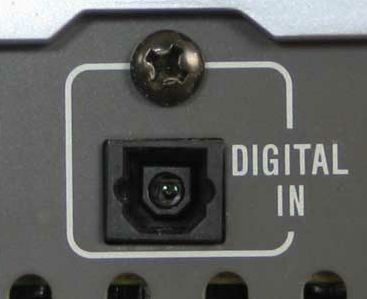
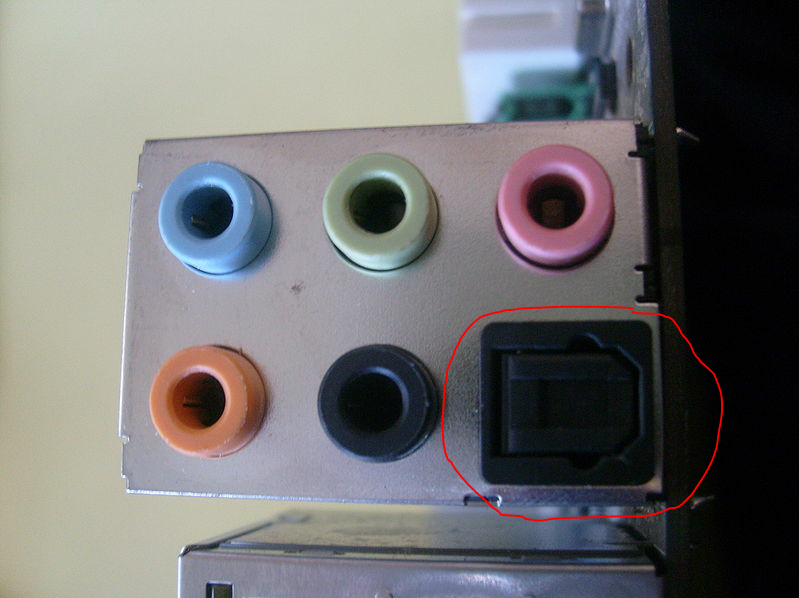
There are several ways to transmit a digital signal from your laptop to your TV. One of the earliest, designed in 1983 by Toshiba and still in use today, is the optical (Toslink) audio cable. This cable takes a beam of red light from the source and transmits it via fiber to the receiver. If you have an optical output on your laptop or desktop and an optical input on your TV (seen above), this cable is the only thing you need.

Due to the physical design of these cables they tend to be slightly rigid and sometimes difficult to maneuver. For that reason I recommend getting a cable slightly longer than you would otherwise think you'd need. If you are connecting your laptop to your TV from 5 feet away, I'd recommend going with at least a 10 foot cable instead of 6. That being said, you'll get the same crystal clear signal using an optical cable as you would over HDMI, so if this option is available to you I highly recommend it.

How to Configure Your Laptop to Connect to Your TV

Getting your laptop to connect to your TV with the proper cables and converters is one thing. Actually telling your laptop what outputs to use in order to send the proper signals to your TV is another. Have no fear though, as using the following directions (or watching the video at the end) should make the process quick and painless.

Setting Up Video Output

If you're still not viewing your computer's desktop on your TV, follow these directions for any Windows 7 machine:
  1. Right-click your Windows desktop and select 'Screen Resolution'
  2. At the following dialog, you should see two screens. One is your laptop's screen, and the other is your TV. If you don't see two screens, ensure your cable is properly plugged in, your TV is powered on and switched to the correct input, and your video card drivers are up to date.
  3. Under the dialog box that says Multiple Displays select Duplicate These Displays
  4. Click OK
  5. Your screen and TV may flash for a second, but when they come back they should be showing the exact same picture. Your screens are now set up -- time to check the audio.


Setting Up Audio Output

If you attempt to do something that would naturally carry audio (like play a YouTube video) and don't get any results, it's likely that your sound card is not configured properly. To properly configure your sound card, simply follow these steps on Windows 7:
  1. Go to Start -> Control Panel -> Hardware and Sound -> Sound
  2. Select the Playback tab
  3. Click on the proper icon for your audio output. If you are sending audio through a 3.5mm jack, select Speakers. If you are sending audio through an HDMI cable, select HDMI. Optical/Coax, select SPDIF and so on...
  4. Click Set Default
  5. Click OK
Both your audio and video should now be configured to run through the proper cables to your TV. Don't forget to switch the audio back after you're finished connecting your laptop to your TV!