Showing posts with label stereo. Show all posts

Wednesday, March 28, 2012

Connect RCA Laptop to Optical or Coaxial TV Audio

Your Laptop (Composite (RCA) Out - Very Unlikely)


Your TV (Optical In)
OR
Your TV (Coaxial In)

Considering this is so rare, I'm not sure why I'm even posting it, but I figured since it's a possibility I might as well list it if someone is really desperate. I recommend this method as an absolute last resort. Using this converter will not up-scale your analog stereo output (via RCA) to a clearer digital version through optical or coaxial, so this method really just seems silly. That being said, if your laptop has a composite (RCA) output you can connect it to your TV through an optical or coaxial input using the following items.


Composite (RCA) Cable

The RCA cable will carry an analog signal from your laptop to the analog-to-digital converter before getting to your TV. To use this cable, plug one end into the red and white RCA OUTPUT ports on your laptop and the other end into the red and white RCA INPUT ports on the analog-to-digital converter.

RCA to Coaxial/Optical Audio Converter

This device converts an analog RCA signal originating from your laptop and converts it to a digital coaxial or optical signal for use on your TV. Make sure the RCA cables coming from your laptop are plugged into the converter's INPUT and the coaxial or optical cables are plugged into the converter's OUTPUT.

Coaxial Cable

The coaxial cable carries a digital signal from the analog-to-digital converter to your TV. Make sure one end of your coaxial cable is plugged into the OUTPUT of your analog-to-digital converter and the other end is plugged into your TV's coaxial INPUT.
OR

Optical (Toslink) Cable

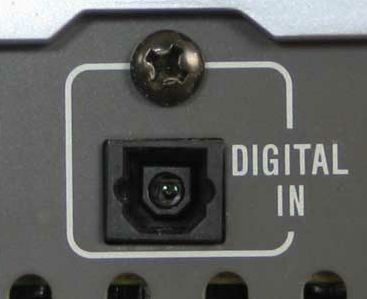
If you don't wish to use a coaxial cable with this device to connect your laptop to your TV you may elect to use an optical cable instead. The optical cable carries a digital signal from the analog-to-digital converter to your TV. Make sure one end of your optical cable is plugged into the OUTPUT of your analog-to-digital converter and the other end is plugged into your TV's optical INPUT.

Connect Laptop to TV via Composite (RCA) Cable

Your Laptop (Composite (RCA) - Very Unlikely)
Your TV (Composite (RCA))

Though it's highly unlikely that anyone has composite outputs on their laptop or desktop, it is possible in theory to connect your laptop's audio to your TV's speakers using a simple, red & white composite (RCA) cable. One of the oldest connectors of modern technology, the basic stereo RCA cable can be found on pretty much any video camera, VCR, and gaming system from the 90's and early 2000's. It has just about reached its peak, however, as many modern TV and receiver manufacturers are slowly starting to phase this technology out in favor of digital inputs and outputs.

Using the cable is just about as simple as it could get. Connect one white end of the cable to your laptop and connect the other white end of the cable to your TV. You now have mono sound. For stereo, repeat the process with the red ends of the cable. It's even easier than using jumper cables because if you cross them, instead of blowing something up, the audio coming through your speakers will simply be reversed.

Connect Laptop to TV Audio via 3.5mm to RCA Y-Splitter


Your Laptop (Composite (RCA) Out - Very Unlikely)

OR
Your Laptop (3.5mm (mini-jack) Out)

Your TV (3.5mm (mini-jack) In)
OR
Your TV (Composite (RCA) In)


Known to just about every audiophile of the 90's, the infamous 3.5mm to RCA "Y-Splitter" allows you to connect your laptop's audio to your TV's speakers either from 3.5mm to red and white RCA cables or the other way around.

You can use this cable to transmit a stereo signal from your laptop to your TV by plugging the 3.5mm end of the cable into your laptop's headphone jack (3.5mm output) and plugging the red and white RCA ends into your TV's RCA stereo input port. Conversely, if your laptop has an RCA output (which is rare), you can plug end of the cable containing the two RCA tips into your laptop and the other end, containing the 3.5mm tip into your TV's 3.5mm input.

Connect Laptop to TV Audio via 3.5mm (Mini-Jack) Cable

Your Laptop (3.5mm (mini-jack) Out)

Your TV (3.5mm (mini-jack) In)

Invented for use in old telephone switchboards, the 3.5mm (mini-jack) cable has been the tried and true, single-cable, stereo solution of choice for generations. Its simple design lends itself useful to just about any audio device on the market. iPods, laptops, TVs, smart phones, Walkmen, and now even vehicles can be connected to any number of sources simply by using a 3.5mm cable.

The 3.5mm cable uses an analog signal, which means it will only carry stereo sound (no 9.1 surround sound with this bad boy I'm afraid), but utilization by virtually every product on the market with a speaker makes it one of the most commonly used cables anywhere. Chances are if you can't connect your laptop to your TV with a digital source, a 3.5mm cable will get the job done.